Downloading and connecting brand kit
What is a brand kit?
Once your portal is production ready, you can download your brand kit and get started with AI. Your brand kit consists of your design brief and the skill, which bundles ready-to-use commands that you can apply while working in your AI tool to get your work right where you want it to be.
What’s in the design brief
Everything TrueKeep knows about your brand, written for judgment, not just reference: identity and positioning, the color system with usage rules, typography and hierarchy, voice and tone, layout principles, and the rules that matter most.
What’s in the skill
Nineteen commands grouped into four families:
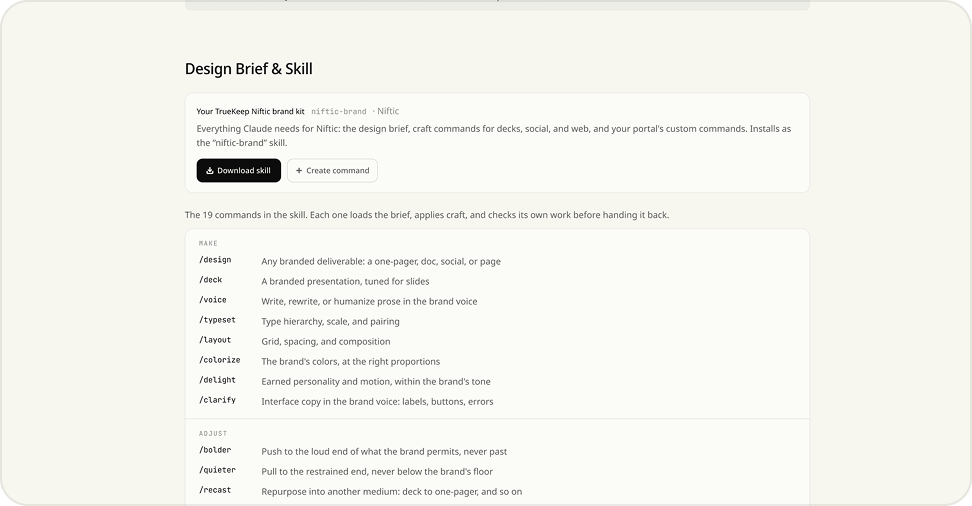
Generate new work with /design, /deck, /voice, /layout, /colorize.
Reshape finished work within your brand’s rules: /bolder, /quieter, /recast.
Refine existing work with /critique, /audit, /polish.
Check your brand’s AI-readiness with /readiness, or take the guided tour with /teach.
Downloading the brand kit
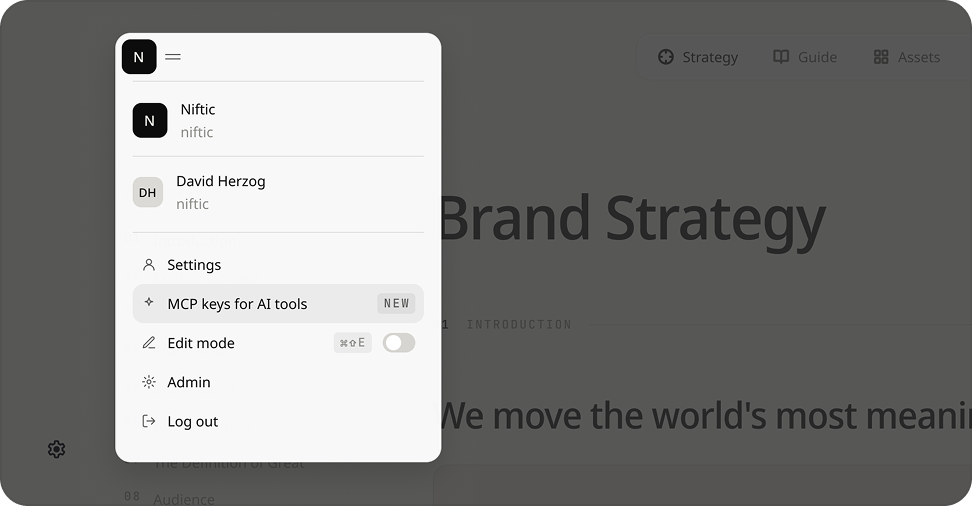
Navigate to your profile icon at the top left of the page and click into MCP keys for AI tools.
On the MCP keys for AI tools page, scroll down to Design Brief & Skill. This section shows you all the commands in your skill and gives you the ability to create new ones. Once the skill looks good to you, press Download Skill.
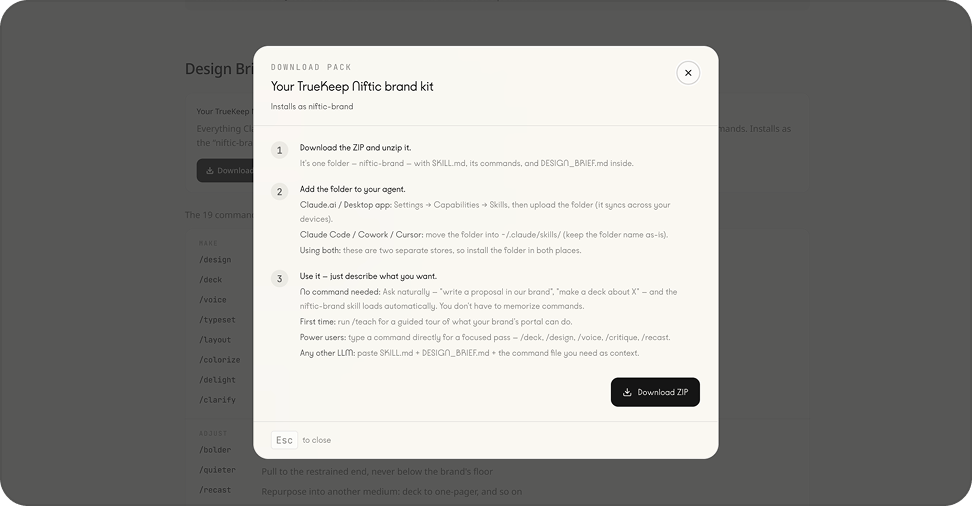
Once you've clicked Download Skill, instructions on how to integrate the brand kit into your AI will appear.
Using the skill
Once you’ve connected the brand kit to your AI following the instructions above, check your brand’s AI-readiness with /readiness, or take the guided tour with /teach.
Open Claude and make sure your skill is connected. Your skill name should automatically show in the chat bubble. If not, you can add your skill by going to Add button > Skills > Click on (/Your Skill Name).
Once your skill is connected, prompt the command /teach. This will walk you through how to use TrueKeep with your AI, and its rationale behind each decision.