Making changes to your portal
Editing capabilities depend on your role
Access to your portal is role based. Each person sees exactly what they should.
Read-only access to your strategy, guidelines, and assets.
Can edit portal content: strategy, guidelines, and assets.
Everything an editor can do, plus managing the organization from Settings: inviting team members, setting their roles, domain sign-in, and billing.
Turning on Edit Mode
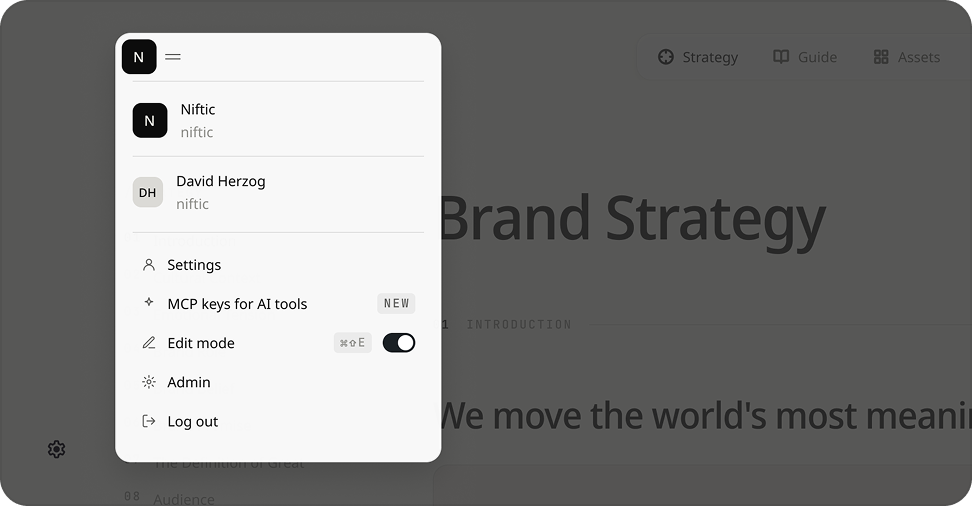
Click on the page you would like to edit, then navigate to your profile icon at the top left of the page and toggle on the Edit Mode. You can also use the keyboard shortcut Command + Shift + E to turn on editing mode.
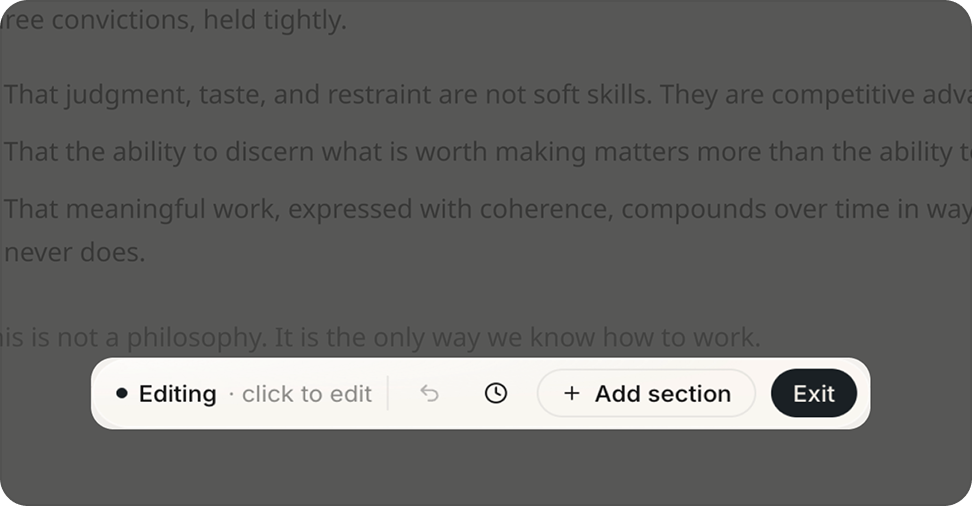
When Edit Mode is on, a toolbar appears at the bottom of your screen. It shows when your changes have saved, gives you access to version history, and lets you add a new section to the page.
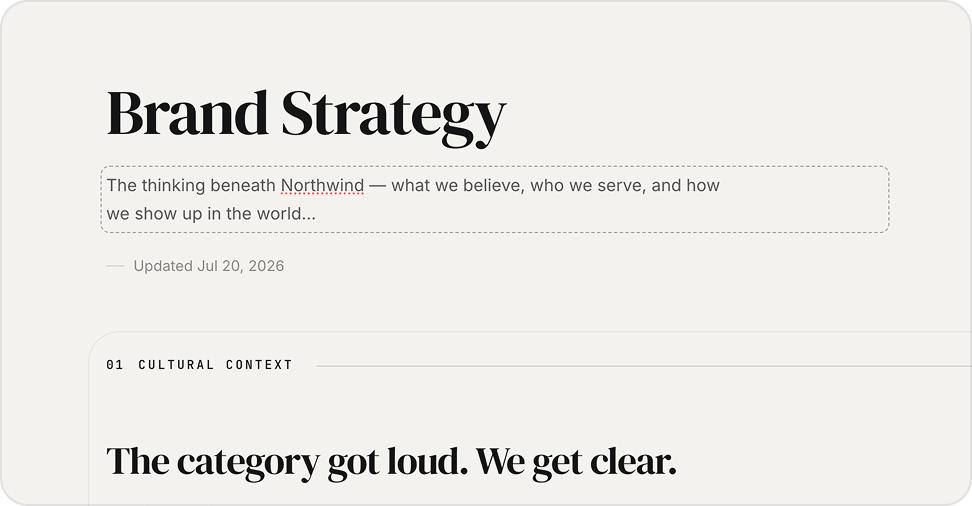
You can directly edit the text, upload a new file, or update a rule. Your changes save automatically.
Editing an existing section
Click on the page you would like to edit, then open the account menu and toggle on Edit Mode.
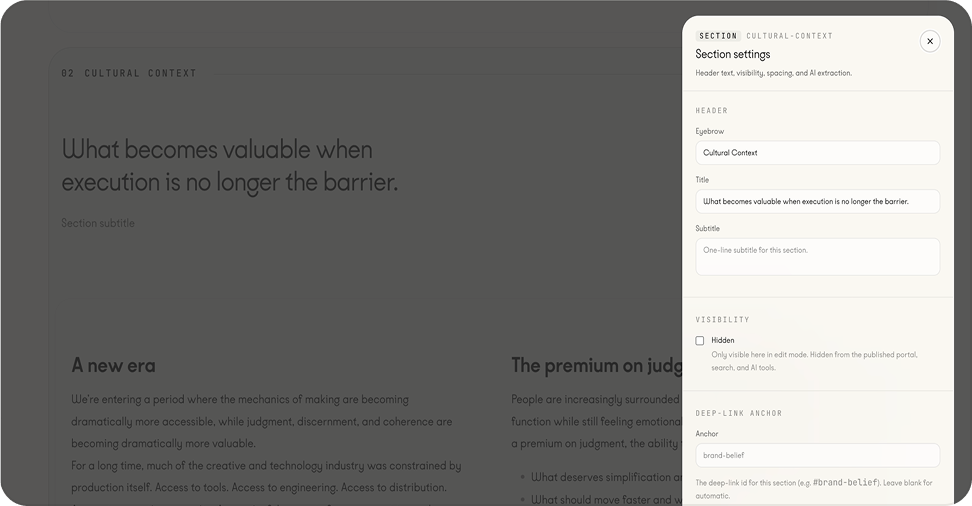
Hover the section you would like to edit. A toolbar appears, letting you move, duplicate, or delete it. Edit it directly by clicking any editable text field, or open its settings from the gear icon.
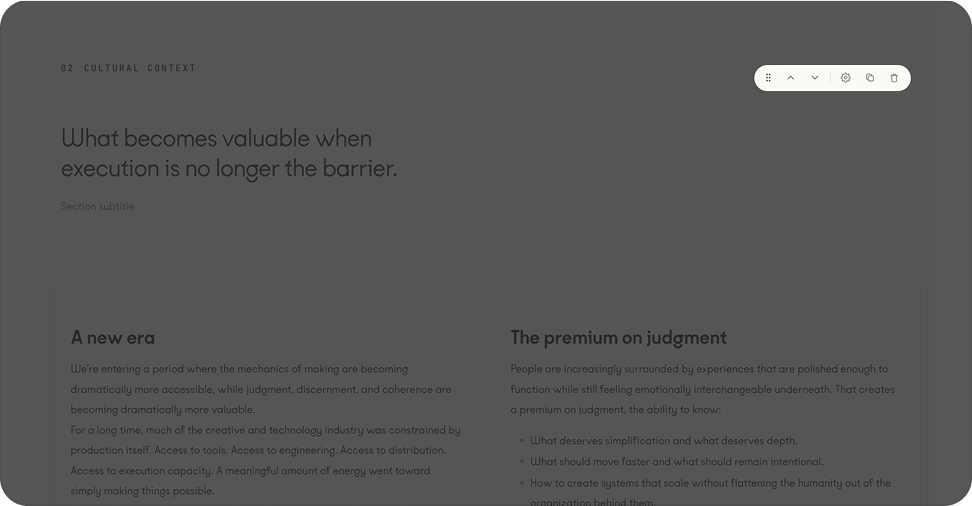
The gear icon opens a side panel where you can edit the section's content, visibility, anchor, and density. Your changes save automatically.